Background
The move from X11 to Wayland in linux, has opened up a new level of linux desktop customization. Especially with the recent stablized wayland experience in NVIDIA drivers, it has been a lot easier to make wayland work. Additionally, with the bigger screens, traditional stacking window manager is less and less appealing due to the inefficient use of screen space, and there seems to have a resurgence of i3-like tiling window manager.
Linux Distribution
The recent Linux enthusiast community seems to be using a rolling linux distribution like Arch Linux, or a fast-updating distro like Fedora. NixOS seems to be a popular choice as well, although I haven't gotten a chance to look at it. Since I work in robotics and on simulators like Isaac, I am deeply locked into the Ubuntu/Debian APT ecosystem. Additionally, since I value stability and prefer a snap-free experience, I daily drive a debian system even on my desktop.
Choosing the wayland compositor
Hyprland is a very popular tiling window manager.
However, the developer seems too eager to
adopt early C++ standards, requiring C++ 26 in the most recent build
(at least gcc>=15 or clang>=19 asof December 2025). Even though Debian 13 was just released
this past August, The gcc and clang are already out-of-date. Additionally, there are
instances of error messages that
straight out assign and attribute blames without giving useful debug information.
To be fair, it is their rights to say so; nevertheless, it would not be possible to have those new linux desktop
experiences without their efforts.
But it seems a bit too hostile to someone not using the lastest, cutting edge distros.
The good news is, hyprland seems to be back in the Debian sid repository
(and subsequently, in the upcoming Ubuntu 26.04).
So you may have an easier time installing
hyprland then. But as I'm stuck on Debian 13, I need to find an alternative solution.
Niri seems to be catching on as one of the most popular Wayland desktop compositors recently. Functionality-wise, it seems to be that a scrolling window manager seems to be more useable than a tiling window manager, Additionally, since they use rust, it is a bit more straightforward to get the latest rust compilers using rustup.
Installation of Niri
I followed the advice in this reddit post.
First, pull in all the requirements:
sudo apt install rustup gcc clang \
    libudev-dev libgbm-dev libxkbcommon-dev libegl1-mesa-dev \
    libwayland-dev libinput-dev libdbus-1-dev libsystemd-dev \
    libseat-dev libpipewire-0.3-dev libpango1.0-dev libdisplay-info-dev
Install the rust build chain:
rustup default stable
cargo install cargo-deb
Build niri:
git clone https://github.com/YaLTeR/niri.git
cd niri
cargo deb
Install niri:
sudo apt install -target/debian/niri_25.5.1-1_amd64.debCompilation and installation of other dependencies
niri requires xwayland-satellite, which is not present in the debian 13 repo. Install it from source just like above:
git clone https://github.com/Supreeeme/xwayland-satellite.git
cd xwayland-satellite
cargo deb
sudo apt install ./target/debian/xwayland-satellite_0.8.0-1_amd64.deb
Configuration and customization of Niri
Just like many recent Wayland Compositors, you are required to edit the configs in text file. Fortunately, niri's default
configuration is located at ~/.config/niri/config.kdl and is extremely well documented.
Resolution
The first step of the set up the desktop resolution. I was surprised to see that niri automatically selected the max resolution for both of my monitors, both in 4K (3840x2160). However, they are by default only configured to have 60 Hz. I ran
niri msg outputsto get the list of all monitors, and configured the desktops accordingly.
output "DP-4" {
    mode "3840x2160@144"
    scale 1.5
    position x=0 y=0
    focus-at-startup
}

// this monitor is rotated 270 degrees, to the right of the main desktop.
output "HDMI-A-2" {
    mode "3840x2160@120"
    scale 1.5
    position x=2560 y=-560
    transform "270"
    layout {
        default-column-width { proportion 1.0; }
    }
}
I configured the default-column-width and to make sure new windows in the vertically mounted monitor
take up the full width.
Desktop Apps
I already have GNOME 48 installed, so a lot of the desktop applications are already present. I prefer ptyxis as the terminal, so I configured the following in the binds:
Mod+T hotkey-overlay-title="Open a Terminal: ptyxis" { spawn-sh "ptyxis --new-window"; }Custom tools
Waybar
Niri is just a wayland compositor, and only manages windows without , Waybar seems to be a good starting point for creating status bars in wayland compositors, and it is present in the Debian 13 repository, making it straightforward to install.
Quickshell seems like another good choice that produces more fancy results, but it requires more complex configurations and requires learning QML. Maybe when I have time later I will explore it. But for now, waybar it is.
First, install waybar from the official repo:
sudo apt install waybarI like to use user level systemd to manage the services:
systemctl --user add-wants niri.service waybar.serviceI'm still cleaning up the config, and I will pose my config file later.
Nerdfonts
It is common to use Nerdfonts in navigation bars. Debian has a weird policy for fonts, requiring them to be completely free. This page shows the list of installable nerd fonts in Debian. I just used fontawesome:
sudo apt install fonts-font-awesomesway-bg
To display a good desktop wallpaper, a common tool is to use sway-bg. Install it using:
sudo apt install swaybgI've written a script that pulls today's Bingwallpaper
and links it to ~/Pictures/BingWallpaper_niri/wallpaper.jpg.
Now, we need to add a configuration to tell swaybg to display the wallpaper.
Using your text editor, put this file into ~/.config/systemd/user/swaybg.service, assuming the desktop wallpaper is located at ~/Pictures/BingWallpaper_niri/wallpaper.jpg:
[Unit]
PartOf=graphical-session.target
After=graphical-session.target
Requisite=graphical-session.target

[Service]
ExecStart=/usr/bin/swaybg -m fill -i "%h/Pictures/BingWallpaper_niri/wallpaper.jpg"
Restart=on-failure
Now add this to the dependency:
systemctl --user add-wants niri.service swaybg.serviceto update the desktop to reflect the file changes, run this command:
systemctl --user restart swaybg.serviceswaylock
Swaylock is the lock screen for these wayland compositors. Debian 13 comes by default with the default swaylock:
sudo apt install swaylockbut it has limited functionality. It might be worth it to try out swaylock-effects, which allows blurring effects and nicer visuals. It's not packaged, so you'll have to compile it yourself.
Final Result
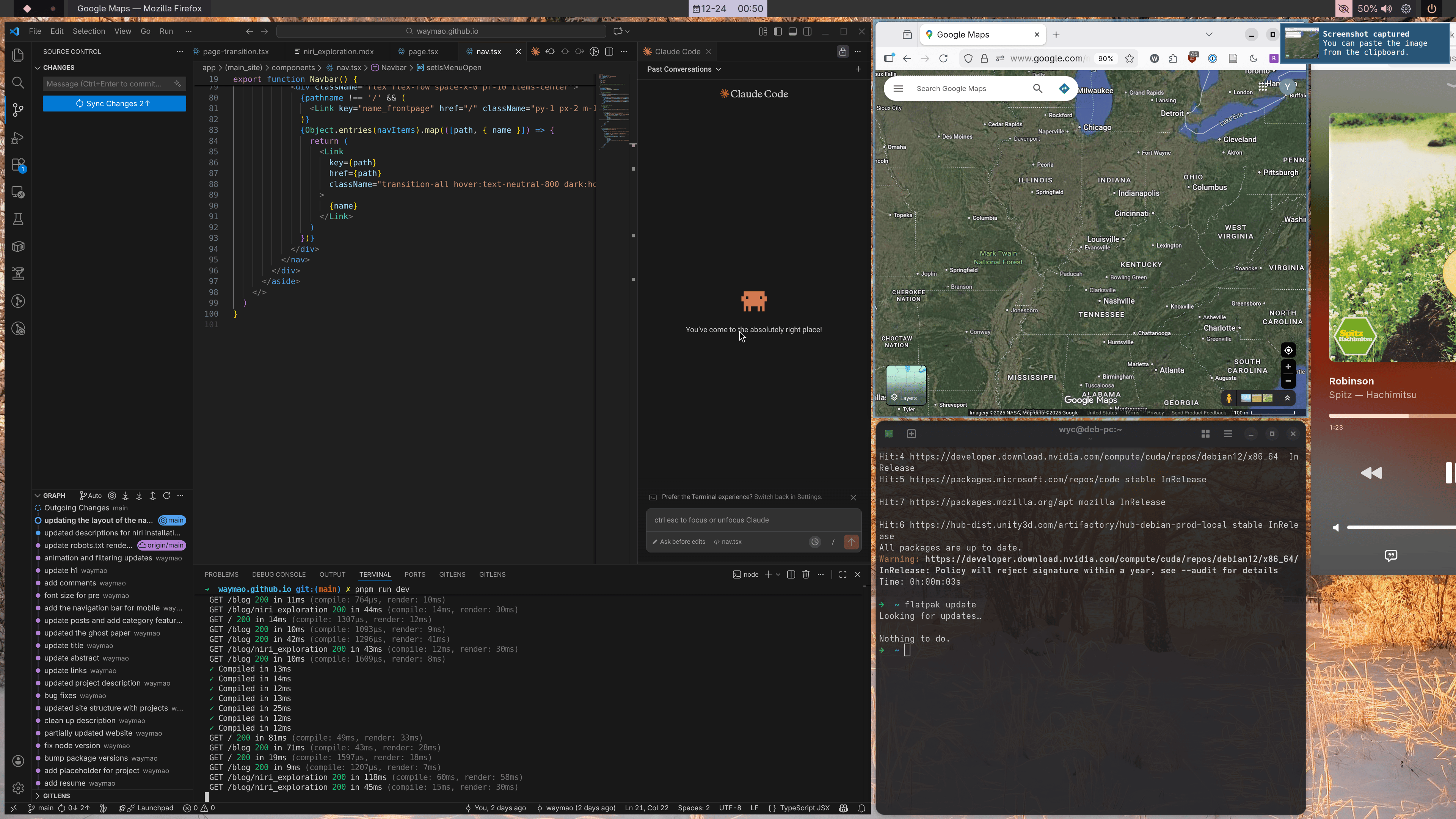
Conclusion
This concludes the installation experience of niri. While it appears that it might require the latest distros, it is definitely possible with a good old stable distro like Debian. And I believe the same steps can be applied without much modification in Ubuntu as well. I hope this article is helpful to anyone trying to use the new wayland compositors but don't want to upgrade their distro yet.